October was a month of making Journeys easier to optimize and your data easier to action. You can now A/B test inside a Journey, ask OneSignal AI to edit a draft for you, segment based on your custom events, and see whether people came back without leaving the dashboard.
With these improvements to the Journeys workflow, you can test another message, refine a branch, or add in a new behavioral trigger. Plus, you’ll save time with OneSignal AI now being able to edit draft Journeys.
Here’s the rundown on what shipped in October:
Optimize Journeys with Confidence
Find your next winning message with A/B testing
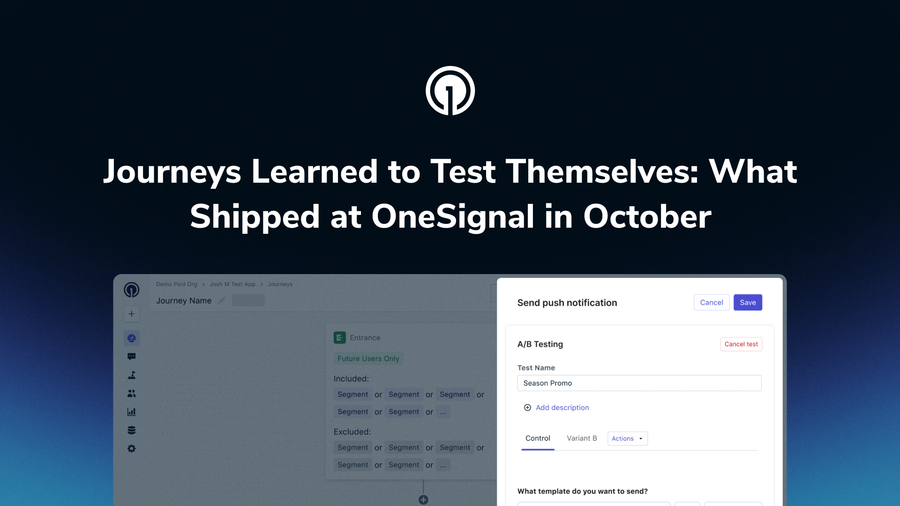
A welcome email’s subject line or a push notification’s call to action can change how people respond. You can now test message variants directly on a Journey step for push, email, and SMS/RCS.
Available in open beta, Journey A/B testing lets you choose click-through rate or open rate as your target metric. Set your confidence level and let OneSignal select a winner automatically, or review the results and choose one yourself. Each test comes with a full statistical report (sample size, p-value, and confidence interval), and the history stays on the step so you can build on past tests.
Free and Growth plans support two variants; Professional and Enterprise support up to ten.
Set up a Journey A/B testDescribe your draft changes to OneSignal AI
Need to add a step or adjust a branch? Describe the change in plain language and OneSignal AI reads your draft Journey’s existing logic and proposes what it will do before you confirm.
You can request several changes together, and proposed edits use your template and segment names so they’re easy to review. This release supports draft Journeys only.
See the AI Journey editing updateRevisit earlier decisions with Journey version history
Improving a Journey often means changing a wait step, adjusting a branch, or swapping a message. Journey version history gives you a way to revisit those decisions without rebuilding an earlier flow from memory.
On both draft and live Journeys, you can now browse a timeline showing what changed, when, and who made the edit. Open a past version to preview its canvas and step settings before restoring it. Restoring creates a new version and keeps the previous one in your history. Users already in the Journey continue automatically, with no manual re-enrollment.
Find it under More Options > Version history. History starts with your next edit after launch, and how far back you can go depends on your plan. It tracks Journey structure and supported settings; it doesn’t preserve earlier message content or segment definitions, schedules, or goals.
Explore Journey version historyUnderstand user behavior and act on it
Build audiences around customer actions
Custom Events is now generally available on all paid plans. Use the events you send to OneSignal to build audiences based on actions, frequency, timing, and event properties.
For example, create a segment of people who added to cart at least twice in the last seven days but haven’t purchased. That gives you a specific audience for a relevant follow-up, using behavior you already track. Stored events also appear on user profiles, bringing more context to individual customer activity.
Stored-event usage and retention limits apply. You can configure retention per app and per event, and monitor usage under Events & Conversions. Organization admins get email alerts at 80% and 100% of the allotment.
DocsGet a clearer view of user activity
Session Events now appear on user and subscription profiles, showing when each visit started and how long it lasted. Under Analytics > Sessions & Retention, the Sessions Volume chart brings daily activity and average duration into one view.
The chart also includes Unique Users, so you can distinguish more visits from more users. These updates are available on all plans, with session history depth varying by plan. No SDK upgrade is required.
Explore Session EventsSee who comes back with retention heat maps
The new retention heat map shows how many users from each weekly cohort return in subsequent weeks, making it easier to spot changes in retention over time.
Start cohorts from Any activity or First session to explore returning users or newly acquired users. Filter by channel or narrow push to specific platforms. The heat map is available on Paid plans only and can be found under Analytics > Sessions & Retention or on the dashboard Overview page.
See the retention heat map updateGet everyday work done faster
Start a guided workflow with OneSignal AI Skills
You shouldn’t have to figure out the perfect prompt to get help with a familiar task. 6 prebuilt skills give OneSignal AI instructions for setup, troubleshooting, message review, translation, and campaign planning. Type / in OneSignal AI or choose + > Skills to get started.
For example, use /program to plan an onboarding series. OneSignal AI looks at your existing segments, events, templates, and Journeys to ground its recommendations in what your app already has. You confirm the plan before anything is created and review the resulting Journey draft before activating it yourself.
Explore OneSignal AI SkillsFind the setting you need
A search field now sits at the top of the settings sidebar. It matches page names and common terms, so searching apns takes you to Push & In-App, 2fa finds Security, and REST_API_KEY finds Keys & IDs.
Log in, try an A/B test on your next Journey, and tell us what you think. We’d love to hear it.