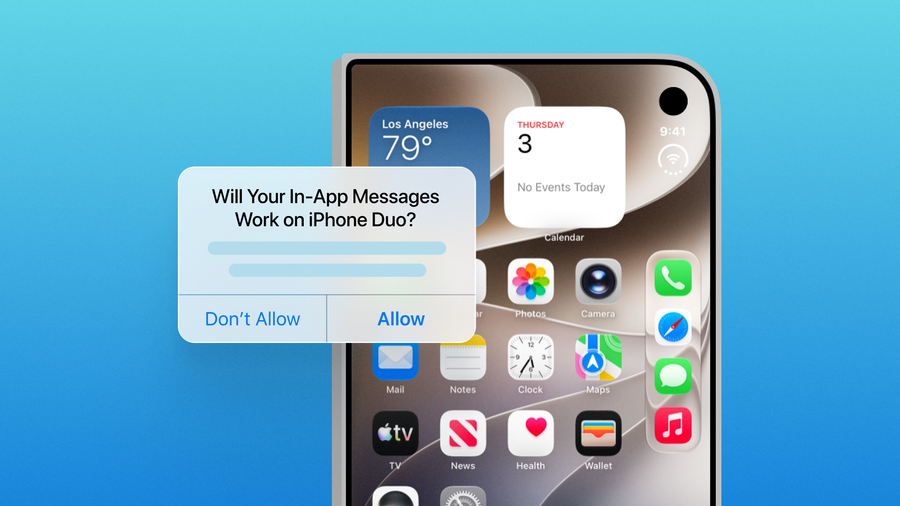
Until now, the shape of the screen was the one thing your in-app messages could count on, and iPhone Duo has just changed that. The Duo has two displays: an outer one that behaves like a compact phone, and an inner one that behaves like a small tablet. Between them runs a fold that Apple’s design guidance treats as space content should work around.
A message only looks as good as the screen it lands on, and this new digital real estate gives your audience two new places to land. So, the first question most senders will ask is the simplest one: will my in-app messages still work?
The short answer: yes, with an SDK update
In-app messages now lay out correctly on iPhone Duo, folded or unfolded, in portrait or landscape. The SDK sizes messages to your app’s window instead of a single screen panel, which fixes unfolded messages that were sized and placed for the wrong display. For any app with users on iPhone Duo, that means in-app messages, including paywalls and onboarding flows, render the way you designed them.
- Messages lay out correctly in folded and unfolded views, in portrait and landscape.
- Banners stay clear of the side camera in landscape.
- Full screen messages hide the status bar when the phone is unfolded.
- Messages re-render correctly if someone rotates, folds, or unfolds the phone while one is showing.
Minimum SDK versions for the fix:
- iOS: 5.8.1 or later
- React Native: 5.5.17 or later
- Flutter: 5.7.3 or later
- Unity: 5.4.4 or later
- Cordova: 5.6.3 or later
- Capacitor: 1.2.3 or later
- .NET: 6.4.3 or later
Apps on older SDK versions still size messages to a single panel, so update to at least the version above to get the fix. The dashboard preview shows the Duo layout now, but devices render correctly only once your app ships with an updated SDK.
Steps you can take today:
- Check your SDK version. If your app is on an older version than those above, update, then ship the new build to your users.
- Preview before you send. In OneSignal’s in-app message preview tool, choose “iPhone Duo · Folded” or “iPhone Duo · Unfolded” from the device menu below the preview.
- Re-check your high-stakes messages. Paywalls, onboarding flows, and anything time-sensitive are worth a second look on Duo once your updated SDK is live.
- Preview your push notifications too. The system draws the notification itself, so what you control is the copy and the image. Our push notification preview tool supports iPhone Duo.
- Avoid fixed widths in custom HTML. If you build your own in-app layouts, size them to the space available rather than to one device.
What Apple’s guidance means for your messages
Apple’s guidance for iPhone Duo asks developers to lay out their apps using size classes, layout margins, and safe area insets, and to avoid fixed widths or anything tied to a specific display. It also recommends keeping layout changes small as the device folds, so controls stay easy to find.
A message that depends on one set of proportions is the opposite of that approach, and the updated SDK moves in the same direction by sizing messages to your app’s window. Our docs have long suggested testing in-apps at very different sizes (iPhone SE and iPad Pro dimensions, for example), and Duo is a new reason to do it.
Build the preview into your process
Foldables will sit alongside the phones your audience already carries, which means “what does this look like?” now has more than one answer. The reliable way to find out is to preview each message on the screens your audience uses before it goes out.
You can do that in OneSignal today. The in-app preview in your dashboard covers iPhone Duo folded and unfolded, and the push notification preview tool covers your push.